
courses:ast100:ip
Table of Contents
This is an old revision of the document!
Image processing for astrophotography
1. Stacking in DeepSkyStacker (DSS)
- Install DSS by downloading the installer appropriate for your OS from this page:
https://github.com/deepskystacker/DSS/releases/tag/6.1.0 (scroll to the bottom → “Assets”)
- Download some raw data from here: (add link)
- Open the DeepSkyStacker app
(⚠️ Not “Live DeepSkyStacker”)
- Click on Open picture files … on the top-left corner of the sidebar.
Select the downloaded FITS photos. These are your light frames.
- Click on Dark, Flat, and Offset/Bias buttons consecutively to add the calibration files.
- Make sure that all images in every tab are selected in the bottom panel.
If not, click on Check all in the second section of the left sidebar.
- Click on Register checked pictures…
- Uncheck Stack after registering
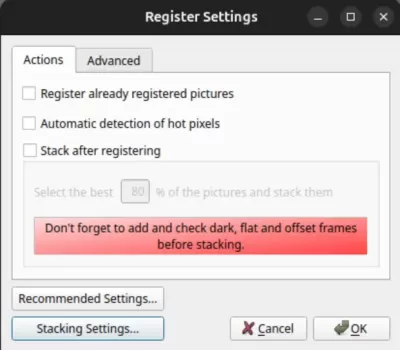
- Go to the Advanced tab → click Check the number of detected stars.
DSS will detect stars in the reference frame.
- If the number is less than 60, lower the detection threshold and click Detect stars again.
A good range is 60–300 stars.
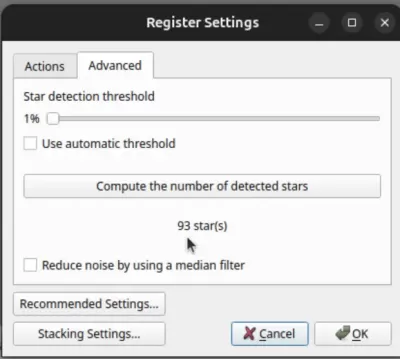
- After confirming the star count is good, return to the main window.
- Click on Stack checked pictures.
- Choose the default stacking settings unless otherwise instructed, then click OK.
- DSS will begin stacking. When finished, it will open the stacked autosave image.
- Save the final stacked file as:
- 32 bit FITS file
(recommended for further processing in Siril/PixInsight/Photoshop)
End of DSS Section
Processing and Stacking Monochrome Astronomical Images in Siril
1. Downloading and Installing Siril
- Go to: https://siril.org/download/
- Download the installer for your operating system.
- Install:
- Windows → run the .exe
- macOS → open .dmg and move Siril to Applications
- Linux → use AppImage or package manager
2. Setting Up StarNet++ and Script
2.1 Download StarNet++
- Download StarNet++ from the provided link.
- Extract the folder to a known location (example: C:/Siril/Starnet2/).
2.2 Install the Siril Script (.ssf)
- Download the provided script.
- Place it in your Siril scripts directory:
- Windows → C:\Users\<user>\AppData\Local\Siril\scripts\
- macOS → ~/Library/Application Support/siril/scripts/
- Linux → ~/.config/siril/scripts/
3. Downloading the Data
- Download the dataset from the provided Drive link.
- Extract everything into a working directory.
4. Sorting the Data into Filter Folders
The data is already calibrated. Only light frames are provided.
Create the following folders:
- L/
- R/
- G/
- B/
- HA/
Move each filter’s images into its respective folder.
5. Opening the Project in Siril
- Open Siril.
- Click the Home (house) icon → top-left corner.
- Navigate to the parent directory that contains the subfolders: L, R, G, B, HA.
- Select that directory.
6. Running the Preprocessing Script
- Go to Scripts tab.
- Select the installed script.
- Siril begins checking and preparing images.
- Preview window appears.
To change preview mode:
- Bottom bar → switch Linear ⇄ AutoStretch.
7. Background Extraction
- Go to Process → Background Extraction.
- Place sample points on dark, empty background areas.
- Ensure no stars, nebula, or bright zones under the points.
- Click Apply (Extract Background).
8. Plate Solving (Astrometry)
- Go to Analysis → Astrometry → Plate Solver.
- Enter:
- Focal length
- Pixel size
- Camera sensor information
- These values are visible under Image Information.
- Click Solve.
9. Color Calibration
9.1 Photometric Color Calibration (SPCC)
- Go to Color → Photometric Color Calibration.
- If Gaia server is down → download Gaia catalog locally from Siril’s database manager.
- Run SPCC.
9.2 LPCC (Local Photometric Calibration)
- Go to Color → Linear Photometric Color Calibration.
- Load local Gaia index file.
- Run LPCC.
10. Stretching the Image
Stretch *before* star removal for best results.
- Go to Image Processing → Histogram Transformation.
- Use AutoStretch or adjust:
- Black point
- Mid-level
- White point
- Apply the stretch.
11. Star Removal with StarNet++
- Go to Process → Star Removal → StarNet++.
- Set the StarNet++ executable path if prompted.
- Enable:
- “Create starless image”
- “Create star mask”
- Run StarNet++.
Output:
- One starless image
- One stars-only image
12. Post-Processing
12.1 Color Saturation
- Go to Color → Saturation.
- Increase moderately.
12.2 Curves
- Go to Image Processing → Curves.
- Adjust luminance/RGB to preference.
13. Re-Adding Stars
- Go to Image Processing → Star Processing → star recomposition.
- Combine:
``starless + stars``
- Apply to produce the final image.
14. Saving the Final Image
- Go to File → Save As.
- Export as TIFF, PNG, or FITS.
courses/ast100/ip.1765347184.txt.gz · Last modified: by shahal