
courses:ast100:ip
Table of Contents
This is an old revision of the document!
Image processing for astrophotography
1. Stacking in DeepSkyStacker (DSS)
- Install DSS by downloading the installer appropriate for your OS from this page: https://github.com/deepskystacker/DSS/releases/tag/6.1.0 (“Assets” at the bottom of the page)
- Download some raw data from here:
- Open DSS app ( not that not the Live app).
- Click on Open picture files … on the top left corner of the sidebar. Select the downloaded FITS photos. These are your light frames.
- Click on dark, flat, and offset/bias consecutively to add the dark, flat, and bias frames. These are your calibration files.
- Make sure that all the images in all the tabs are selected in the bottom box. If not, click the Check all button in the second box on the left sidebar.
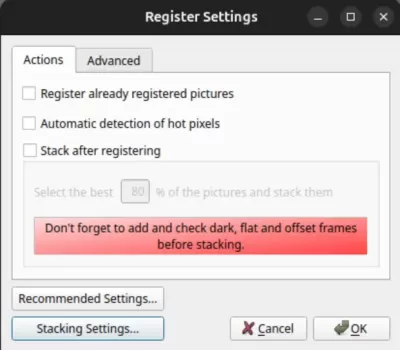
- Click on Register checked pictures…
Uncheck Stack after registering
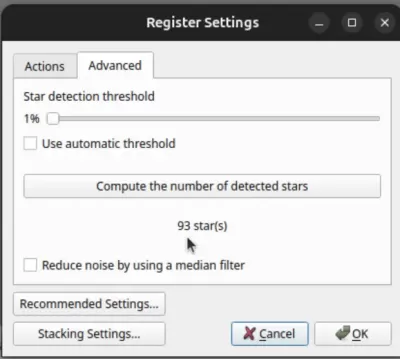
- Click on the advanced tab, click on the check the number of detected stars button. See if the number is more than 60 or not. If not, lower the detection threshold, and click on detect again. 60-300 stars is a good number.
Processing and Stacking Monochrome Astronomical Images in Siril
1. Downloading and Installing Siril
- Go to: https://siril.org/download/
- Download the installer for your operating system.
- Install:
- Windows → run the .exe
- macOS → open .dmg and move Siril to Applications
- Linux → use AppImage or package manager
2. Setting Up StarNet++ and Script
2.1 Download StarNet++
- Download StarNet++ from the provided link.
- Extract the folder to a known location (example: C:/Siril/Starnet2/).
2.2 Install the Siril Script (.ssf)
- Download the provided script.
- Place it in your Siril scripts directory:
- Windows → C:\Users\<user>\AppData\Local\Siril\scripts\
- macOS → ~/Library/Application Support/siril/scripts/
- Linux → ~/.config/siril/scripts/
3. Downloading the Data
- Download the dataset from the provided Drive link.
- Extract everything into a working directory.
4. Sorting the Data into Filter Folders
The data is already calibrated. Only light frames are provided.
Create the following folders:
- L/
- R/
- G/
- B/
- HA/
Move each filter’s images into its respective folder.
5. Opening the Project in Siril
- Open Siril.
- Click the Home (house) icon → top-left corner.
- Navigate to the parent directory that contains the subfolders: L, R, G, B, HA.
- Select that directory.
6. Running the Preprocessing Script
- Go to Scripts tab.
- Select the installed script.
- Siril begins checking and preparing images.
- Preview window appears.
To change preview mode:
- Bottom bar → switch Linear ⇄ AutoStretch.
7. Background Extraction
- Go to Process → Background Extraction.
- Place sample points on dark, empty background areas.
- Ensure no stars, nebula, or bright zones under the points.
- Click Apply (Extract Background).
8. Plate Solving (Astrometry)
- Go to Analysis → Astrometry → Plate Solver.
- Enter:
- Focal length
- Pixel size
- Camera sensor information
- These values are visible under Image Information.
- Click Solve.
9. Color Calibration
9.1 Photometric Color Calibration (SPCC)
- Go to Color → Photometric Color Calibration.
- If Gaia server is down → download Gaia catalog locally from Siril’s database manager.
- Run SPCC.
9.2 LPCC (Local Photometric Calibration)
- Go to Color → Linear Photometric Color Calibration.
- Load local Gaia index file.
- Run LPCC.
10. Stretching the Image
Stretch *before* star removal for best results.
- Go to Image Processing → Histogram Transformation.
- Use AutoStretch or adjust:
- Black point
- Mid-level
- White point
- Apply the stretch.
11. Star Removal with StarNet++
- Go to Process → Star Removal → StarNet++.
- Set the StarNet++ executable path if prompted.
- Enable:
- “Create starless image”
- “Create star mask”
- Run StarNet++.
Output:
- One starless image
- One stars-only image
12. Post-Processing
12.1 Color Saturation
- Go to Color → Saturation.
- Increase moderately.
12.2 Curves
- Go to Image Processing → Curves.
- Adjust luminance/RGB to preference.
13. Re-Adding Stars
- Go to Image Processing → Pixel Math.
- Combine:
``starless + stars``
- Apply to produce the final image.
14. Saving the Final Image
- Go to File → Save As.
- Export as TIFF, PNG, or FITS.
courses/ast100/ip.1765214508.txt.gz · Last modified: by shahal